Complete Guide to WordPress & Blogger Speed Optimization
Learn step-by-step how to optimize WordPress and Blogger website speed for better performance and faster loading times.

Aminafy Team
Nov 3, 2025
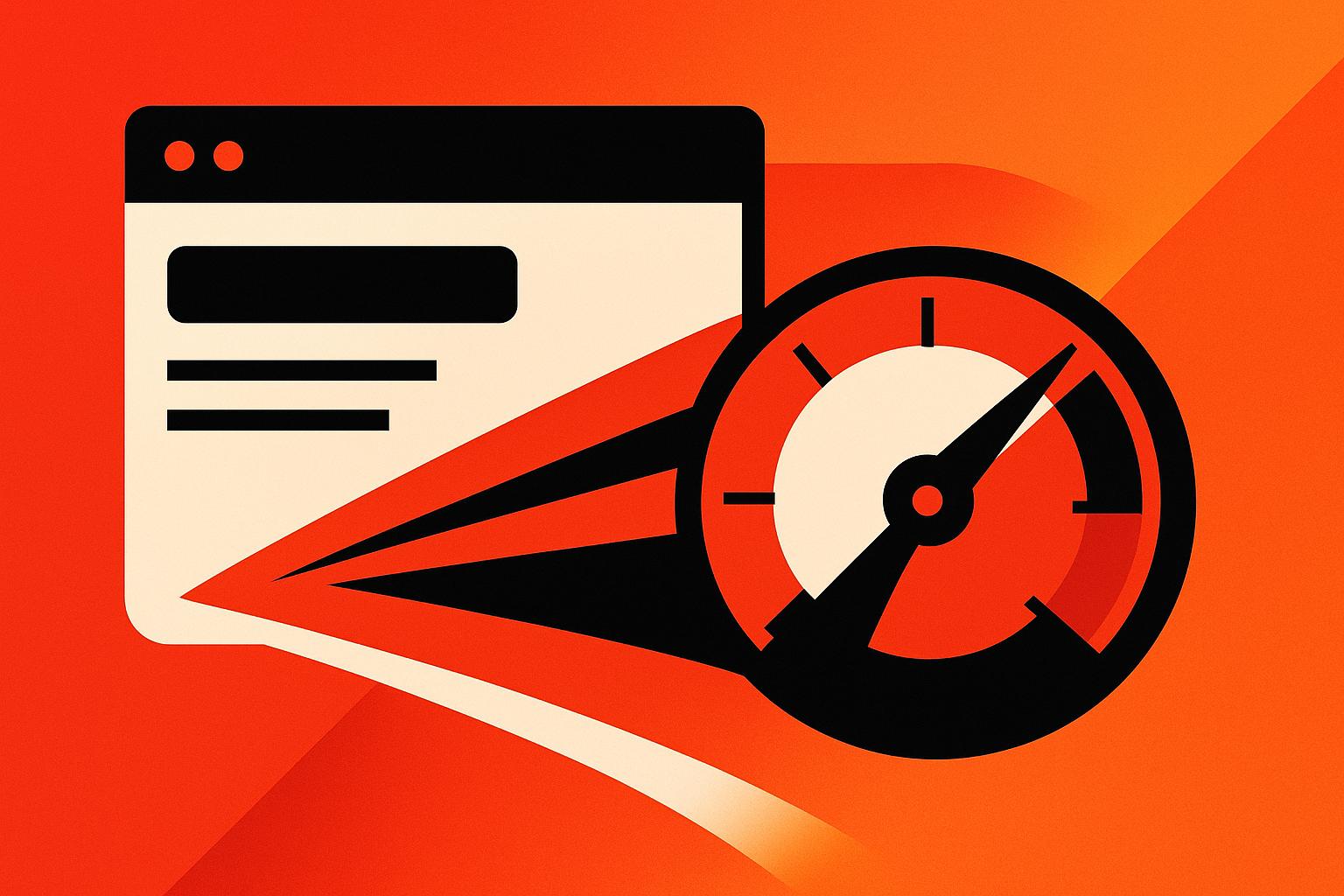
Website speed is no longer a luxury - it’s an expectation. In today’s hyper-competitive digital landscape, the performance of your website can make or break the user experience, impact search engine rankings, and ultimately influence your revenue. If your site takes too long to load, users won’t hesitate to move on to your competitors.
In this article, we’ll break down the essential steps for optimizing the speed of WordPress and Blogger websites, based on expert insights and practical techniques. Whether you’re a small business owner, creative entrepreneur, or scaling brand, this guide will equip you with actionable strategies to enhance your website's performance and engage your visitors effectively.
Why Website Speed Optimization Matters
Let’s face it: visitors are impatient. According to research, 40% of users abandon a website if it takes longer than 3 seconds to load. Beyond user frustration, slow website performance can also lead to:
Lower Search Rankings: Google prioritizes fast-loading websites in its search algorithm.
Reduced Conversions: A slow website can reduce trust, leading to fewer purchases or inquiries.
Poor Mobile Experience: Slow speeds are especially detrimental on mobile devices, where users expect quick results.
Step-by-Step Website Speed Optimization Process
1. Start with Plugin and Theme Updates
Outdated plugins and themes are common culprits in slowing down WordPress websites. Keeping them updated ensures optimal functionality and addresses potential bugs or vulnerabilities. Here’s how to begin:
Check for Updates: Navigate to your WordPress dashboard and review the themes and plugins section for any update notifications.
Update Safely: Select all outdated plugins and themes, click "Update Now", and let them complete the process. Avoid refreshing the page during updates to prevent crashes or errors.
Monitor Results: After updates, re-test your website’s performance to identify any immediate improvements.
Pro Tip: Avoid installing unnecessary plugins. Each active plugin adds to your website’s load time. Use only what’s essential for your website’s functionality.
2. Use a Cache Management Plugin
Caching is one of the most effective ways to improve website speed. A reliable plugin like WP-Optimize can clean up unnecessary data, compress images, and manage cached files efficiently.
Install WP-Optimize: Search for the plugin in your WordPress dashboard, install, and activate it.
Optimize Your Database: Select and clean all unused files and data, such as orphaned posts, spam comments, and outdated revisions.
Clear Cache: Use the cache-clearing feature to remove stored files that may slow down site performance.
Compress Images: Large, uncompressed images increase load times. Use WP-Optimize to compress and resize images without compromising quality.
By systematically cleaning up your site, you’ll reduce loading times and improve back-end efficiency.
3. Focus on Image Optimization
Images are often the heaviest elements on a website, significantly affecting load times. Optimization ensures your visuals maintain their quality while reducing their size.
Remove Unnecessary Images: Audit your media library and delete unused or duplicate images.
Compress Images: Use an image optimization plugin or tool to compress files. If you have numerous images, compress them in bulk for efficiency.
Prioritize Lazy Loading: Enable lazy loading so images only appear when they come into the user’s viewport, reducing initial load time.
Remember: Avoid storing excessive demo or placeholder images on your site - this can clutter your database and drag down performance.
4. Leverage Specialized Tools for Advanced Optimization
For more advanced optimization, installing specific plugins can enhance your site’s speed and performance. One example is the Air Plugin, which provides a comprehensive solution for analyzing and improving key performance metrics.
Install the Plugin: Download and activate the Air Plugin from your WordPress dashboard.
Connect With Google: Use your Google account to integrate the plugin with your site.
Analyze Metrics: Let the plugin scan and evaluate your site’s JavaScript, CSS, and other backend components.
Fine-Tune for Maximum Speed: Follow the plugin’s recommendations to improve individual metrics and address bottlenecks in performance.
By including advanced plugins in your optimization toolkit, you’ll unlock valuable insights into your site’s performance and gain more control over its functionality.
5. Test and Monitor Results Regularly
Optimization isn’t a one-time event - it’s an ongoing process. Regularly testing your site ensures sustained performance and allows you to address issues promptly.
Use Speed Testing Tools: Tools like Google PageSpeed Insights or GTmetrix provide detailed reports on how fast your site loads and what elements are slowing it down.
Check Mobile Performance: Since mobile devices account for a significant portion of internet traffic, ensure your site is responsive and fast on smaller screens.
Revisit Optimization Plugins: Re-run database cleanups, cache clearing, and image compression every few weeks or after major updates.
Common Pitfalls to Avoid
While optimizing your website, it’s important to steer clear of these mistakes:
Refreshing During Updates: Interrupting updates to plugins or themes can lead to errors or crashes.
Overloading Plugins: Too many active plugins can conflict with each other and slow down your site.
Ignoring Backup Protocols: Always back up your website before making significant changes to avoid losing data.
Neglecting Content Delivery Networks (CDNs): CDNs can help distribute your content across multiple servers, reducing load times for users worldwide.
Key Takeaways
Here’s a quick recap of the most important lessons from this guide:
Update Regularly: Keep your plugins and themes up to date to prevent bugs and improve performance.
Use Caching Tools: Implement plugins like WP-Optimize to clean up your database and manage cache files.
Optimize Images: Compress and lazy-load images to improve page load speed without sacrificing quality.
Install Advanced Plugins: Tools like Air Plugin provide detailed performance insights to enhance website speed.
Test Frequently: Use tools like Google PageSpeed Insights to monitor your progress and ensure sustained optimization.
Avoid Excess Plugins: Only use necessary plugins to prevent performance bottlenecks.
By following these steps, you can transform your website into a fast, user-friendly platform that engages visitors and supports your business goals.
Conclusion
Website speed optimization is an essential part of maintaining a professional and competitive online presence. Whether you’re running a content-heavy blog, an ecommerce store, or a business website, implementing these strategies will help you deliver a seamless experience to your audience.
Remember, a faster website doesn’t just improve user satisfaction - it also boosts your search engine rankings and conversion rates. Regularly monitor and fine-tune your site to stay ahead of the curve in today’s digital-first world.
By taking proactive steps now, you’ll set your business up for long-term success and leave a lasting impression on your customers.
Source: "Website Speed Optimization 2025 | WordPress & Blogger Speed Boost Tips in Hindi/Urdu" - Algo Adeel, YouTube, Oct 2, 2025 - https://www.youtube.com/watch?v=rllzh1YgilE